Build the scene.
Pick a backdrop or a prebuilt 3D set. Add the people in the shot, seat or pose them, and dress the set with furniture and practical lamps.

Four steps, in the order you'd work on a real set. By the end you know the exposure, you've seen every frame, and the crew has the sheet.
Pick a backdrop or a prebuilt 3D set. Add the people in the shot, seat or pose them, and dress the set with furniture and practical lamps.
Add fixtures and modifiers, set output and colour, and drag them into place. The meter reads each light at the face and names the pattern as you go.
Choose the body and lens, set exposure and the picture profile, and check every frame in the Camera or Split view.
One click makes the shoot sheet: frames, floor plan, lights in crew terms, build order, gear list and your notes, as PDF or PNG.
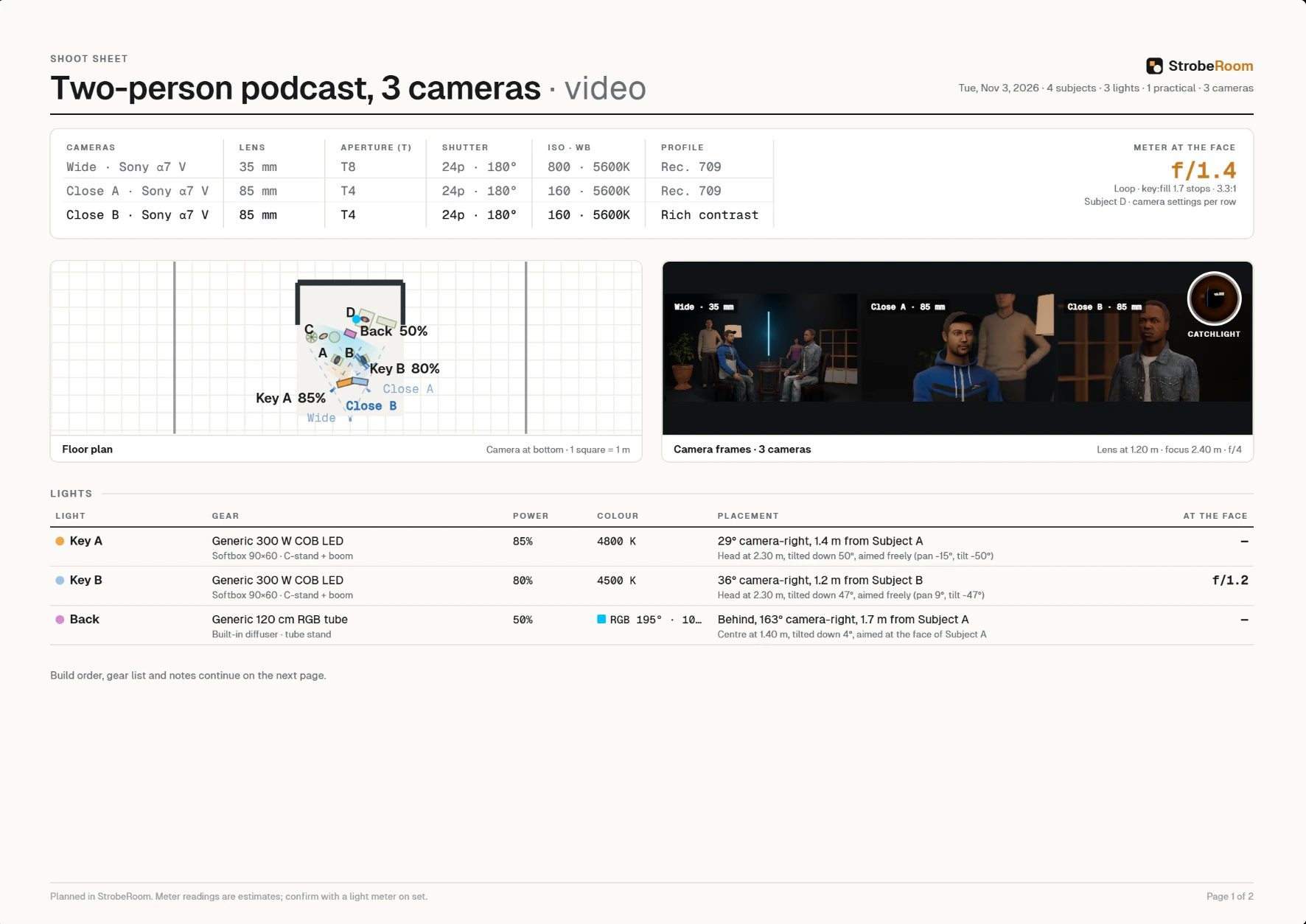
Two lights, an A and a B camera, the person and their pose, a move across the set, then the shoot sheet for the crew. Recorded in StrobeRoom 1.10.3 and cut to one minute.
A few keys cover most of the moving around. The full list is in the app under the ? button.
| ⇧ 1–4 | Switch view | Studio, Camera, Split and Plan. |
| M | Moving items | Turn dragging of lights, people and props on or off, so you can orbit without knocking anything. |
| Q / E | Rotate | Turn the selected item. |
| ⇧ + drag | Raise or lower | Move a light or camera up and down. |
Studio scenes, camera frames, plans and exported sheets, all made in StrobeRoom.